IPTV Buffering Fix UK 12 Proven Solutions to Stop Freezing in 2026
IPTV buffering in the UK is caused by one of five things: an unstable Wi-Fi connection, ISP throttling of streaming traffic during peak hours (7–11 PM), a full app cache on your device, insufficient broadband speed, or the IPTV server being overloaded. In 90% of UK cases, switching from Wi-Fi to a wired Ethernet connection or changing your DNS to 1.1.1.1 (Cloudflare) eliminates the buffering immediately. Work through the fixes on this page in order — most people solve it within the first three steps.
Why Is My IPTV Buffering? — All 9 Causes
Match your symptoms to the right cause before trying any fix. The most common mistake UK viewers make is trying fixes at random — this table puts you in the right place immediately.
| Cause | How common | When does it happen? | Telltale sign | Jump to fix |
|---|---|---|---|---|
| Wi-Fi instability#1 cause in UK homes | Very common | Any time | Random freezes, worse far from router, fine on phone near router | Fix #1 → |
| ISP throttlingBT, Virgin, Sky, TalkTalk | Very common in UK | Evenings 7–11 PM | Fine in the morning, buffers in the evening; Netflix works fine at same time | Fix #4 → |
| Full app cache | Common | Any time | Gradually getting worse over weeks; app is sluggish, channels slow to load | Fix #3 → |
| Insufficient buffer size in app | Common | Any time | Short, frequent freezes of 1–3 seconds that self-recover | Fix #5 → |
| Slow DNS server | Common | Peak hours | Channels slow to start; long black screen before stream begins | Fix #4 → |
| Wrong decoder (HW/SW) | Moderate | Any time | Specific channels or 4K streams buffer while HD channels are fine | Fix #6 → |
| Overheating device | Moderate | After 30+ min | Fine at start, worsens after 30–45 minutes of streaming; device is hot to touch | Fix #9 → |
| Too many simultaneous streams | Less common | When others watch | Buffers when another TV in the house is streaming simultaneously | Fix #10 → |
| Weak IPTV server / poor provider | Less common | Big live events | All fixes tried, other devices are fine, buffers only during Premier League / major events | Fix #12 → |
12 IPTV Buffering Fixes — In Order of Impact
Work through these from top to bottom. Most UK viewers fix buffering before reaching Fix #5. Each fix includes exact steps for Firestick, Android and Smart TV where the path differs.
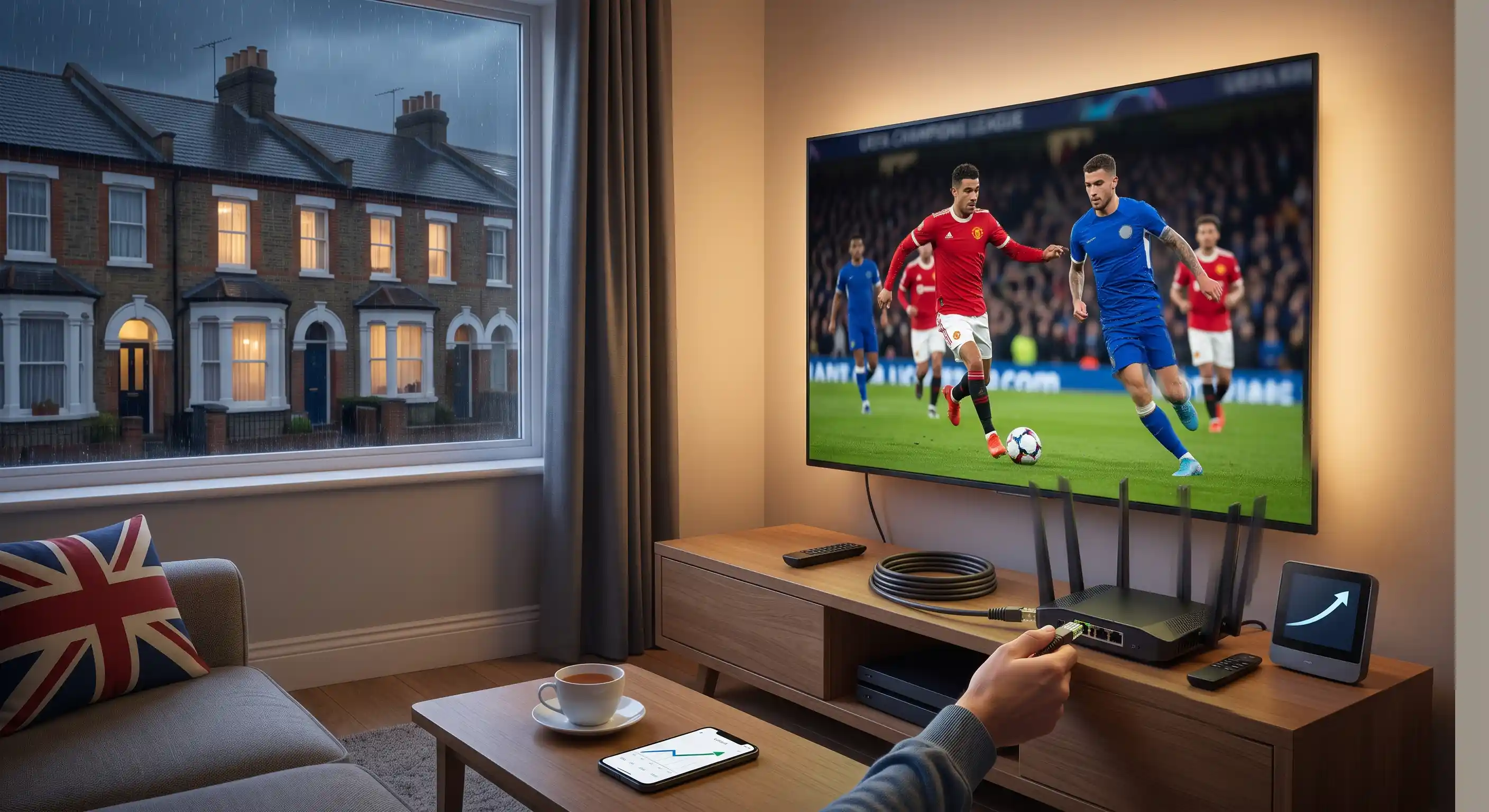
Switch from Wi-Fi to Ethernet
The single most effective IPTV buffering fix — eliminates signal interference and inconsistent throughput in one step.
Wi-Fi is the most common cause of IPTV buffering in UK homes. Even if your device shows full signal bars, Wi-Fi suffers from interference, signal fluctuation and congestion — particularly on 2.4 GHz networks shared by dozens of devices (neighbours’ routers, microwaves, baby monitors). A wired Ethernet connection removes all of this variance. IPTV is a real-time stream: a 0.5-second dropout in data delivery causes a visible freeze. Ethernet eliminates this.
Run an Ethernet cable from your router to your streaming device. If cable length is impractical, use a Wi-Fi Mesh node (like TP-Link Deco) close to your TV instead of running cable — far better than relying on a single router signal across walls.
If buffering stops after switching to Ethernet: Wi-Fi was the cause. Your fix is permanent. If you can’t run a cable, move your router closer to the TV or invest in a mesh Wi-Fi system — the improvement is significant.
Switch to the 5 GHz Wi-Fi Band
If Ethernet isn’t an option, connecting to 5 GHz instead of 2.4 GHz gives dramatically better IPTV performance.
Most UK broadband routers broadcast two Wi-Fi networks: 2.4 GHz and 5 GHz. The 2.4 GHz band is slower, more congested (shared by every device in range, including neighbours), and more susceptible to interference. The 5 GHz band is faster, less congested, and better suited to streaming — the trade-off is shorter range and worse wall penetration.
On your router’s Wi-Fi settings, your 5 GHz network is usually labelled with “_5G”, “_5GHz” or “Plus” at the end of the network name. Connect your streaming device to this network. If the two bands share the same name (band steering), log into your router admin panel (usually 192.168.0.1 or 192.168.1.1) and separate them into two named networks so you can choose which one to connect to.
5 GHz has shorter range. If your TV is more than 5–6 metres from the router, or separated by a wall, the 5 GHz signal may be weaker than 2.4 GHz at that distance. In that case, use a Wi-Fi range extender on the 5 GHz band, or run an Ethernet cable (Fix #1).
Clear the IPTV App Cache
A bloated cache causes progressive slowdowns and buffering that gets worse over time. Takes 10 seconds and should be done monthly.
IPTV apps accumulate temporary data over time — EPG data, thumbnail images, session logs. On devices with limited storage (particularly the Firestick Lite with 8 GB), a full cache directly causes buffering, slow channel switching and app crashes. Clearing the cache deletes this temporary data without removing your playlist or login details.
Important: clear the Cache, not the Data. Clearing Data removes your credentials and playlist — you’d have to re-enter your Xtream Codes login. Cache only is safe.
Also clear the Amazon Home app cache on Firestick (same path) — it shares resources with other apps. Restart the device after clearing both caches before testing.
Change DNS to 1.1.1.1 (Cloudflare) — Fix ISP Throttling
If your IPTV buffers in the evenings but streams fine in the morning — and Netflix works perfectly at the same time — your UK ISP is throttling your streaming traffic.
ISP throttling is the #1 cause of evening IPTV buffering in the UK in 2026. British broadband providers — including BT, Virgin Media, Sky Broadband and TalkTalk — manage their networks by slowing down traffic they identify as streaming video during peak hours (roughly 7–11 PM, when their networks are most congested). Your connection speed isn’t actually lower — your ISP is selectively slowing specific traffic types.
The first fix is changing your DNS. Your ISP’s default DNS server is often used as part of traffic management — switching to Cloudflare’s 1.1.1.1 (the fastest public DNS) bypasses your ISP’s DNS layer entirely. For many UK users, this alone eliminates evening buffering. If it doesn’t fully resolve it, the next step is a VPN (Fix #7).
How to confirm ISP throttling: test IPTV in the morning (typically fine) vs. the same channel at 8 PM (buffers). Then turn on your phone’s mobile hotspot and connect your Firestick or Smart TV to it instead of your home broadband. If IPTV streams perfectly on mobile data but buffers on your broadband in the evening — ISP throttling is confirmed.
Changing DNS fixes ISP DNS-level throttling. If your ISP uses Deep Packet Inspection (DPI) to throttle streaming traffic — which some UK ISPs do — DNS alone won’t be enough. Use Fix #7 (VPN) as the next step if buffering persists in the evenings after changing DNS.
Increase Buffer Size in Your IPTV App
Increasing the player buffer pre-loads more stream data before playback, preventing short freezes when data delivery briefly slows.
Every IPTV player has a buffer — a small reservoir of pre-loaded video data that keeps playback smooth when network delivery momentarily slows. The default buffer in most apps is 2–5 seconds. Increasing it to 10–15 seconds gives the app more headroom to absorb brief connection drops without interrupting playback.
The trade-off: a larger buffer means slightly longer channel load times (2–4 seconds extra) and higher RAM usage. On a Firestick Lite with limited RAM, be conservative — 8–10 seconds is enough. On a Firestick 4K Max with 2 GB RAM, 15 seconds is comfortable.
Switch Decoder — Hardware (HW) vs Software (SW)
If specific channels or 4K streams buffer while HD channels play fine, the wrong decoder setting is the likely cause.
IPTV players use either Hardware (HW) decoding — which offloads video processing to your device’s GPU — or Software (SW) decoding, which uses the CPU. Hardware decoding is smoother and more power-efficient on modern devices. Software decoding is sometimes more compatible with certain stream formats.
If 4K or specific high-bitrate channels buffer while standard HD channels stream fine, try toggling between HW and SW decoding. On Firestick, HW decoding is generally better. On older Smart TVs or budget Android boxes, SW decoding sometimes handles certain codecs (H.265/HEVC) more reliably.
Use a VPN to Bypass ISP Deep Packet Inspection
If DNS change (Fix #4) didn’t fully resolve evening buffering, your ISP is using DPI to throttle streaming traffic. A VPN encrypts your connection so the ISP cannot identify and throttle it.
Some UK ISPs (particularly BT and Virgin Media) use Deep Packet Inspection — a network technique that inspects the type of traffic flowing through their network and slows down video streaming traffic during peak hours. A VPN encrypts your connection so the ISP sees only encrypted data — it cannot identify it as streaming and cannot selectively throttle it.
How to confirm a VPN is needed: turn on a paid VPN, connect to a UK server (not overseas — higher latency), then try streaming the same channel that was buffering. If it plays without interruption with the VPN on but buffers without it — ISP throttling is confirmed and the VPN is your fix.
Important: only use a VPN if the morning vs. evening test (Fix #4) confirmed throttling. Using a VPN unnecessarily adds latency and can actually cause buffering on a connection that isn’t being throttled. A free VPN is usually worse than no VPN at all — use a paid UK-based VPN service.
Restart Router and Streaming Device
A proper restart — not sleep mode — clears zombie connections, refreshes the DHCP lease and flushes stale data from both the router and device RAM.
This sounds obvious but most people don’t restart correctly. Pressing Home on the Firestick or putting it in standby is not a restart — the device stays on and accumulates RAM bloat. A proper restart means fully powering off, waiting 30 seconds, and powering back on. Do the same for your router — unplug it, wait 60 seconds, plug back in.
Routers develop “zombie connections” — stale TCP sessions that consume resources. Restarting the router weekly and the streaming device before watching a major event is good maintenance practice.
Stop Your Device Overheating
Firestick and Android TV boxes throttle their processor when they overheat — causing progressive slowdowns and buffering that worsens the longer you watch.
The Amazon Firestick runs warm under normal use. When installed directly in the HDMI port of a TV — particularly in a TV cabinet with poor airflow — it can overheat. Thermal throttling reduces the processor’s clock speed to protect the hardware, which causes buffering and slowdowns that worsen progressively during a viewing session.
Use the HDMI extender cable that comes included with Firestick in the box — it pulls the stick away from the back of the TV and allows air to circulate. If you don’t have the cable, they’re available separately for under £5. Keep the Firestick away from enclosed TV cabinets. Do not cover it with any material.
Free Up Bandwidth — Other Devices & Connections
Other devices on your network consuming bandwidth can starve your IPTV stream of the consistent throughput it needs.
HD IPTV requires approximately 5–8 Mbps stable. 4K needs 15–25 Mbps. If other devices on your network are running large downloads, gaming, or streaming 4K simultaneously, your available bandwidth can drop below what IPTV needs. Check what’s running on your network before assuming the problem is your IPTV service.
Pause any active downloads on PCs or consoles (Xbox, PS5). Check if anyone else in the household is streaming simultaneously. If your broadband plan is under 30 Mbps, a household running multiple simultaneous HD streams can exhaust available bandwidth.
If your broadband speed is consistently below 10 Mbps, contact your ISP or consider upgrading your plan. Standard IPTV is not viable on very slow connections — most UK households are on 30–100 Mbps which is more than sufficient.
Update Your IPTV App and Device Firmware
Outdated player apps and device firmware cause compatibility issues, stream decode errors and unnecessary buffering that newer versions resolve.
IPTV players (TiviMate, IPTV Smarters Pro, SS IPTV) receive regular updates that fix known streaming bugs and improve decoder efficiency. Running an old version means missing these fixes. Similarly, Firestick and Android TV firmware updates often include network stack improvements that help streaming performance.
Your Provider’s Server Is the Problem — Test Another Service
If Ethernet is connected, DNS is changed, cache is cleared, buffer is increased and a VPN makes no difference — the buffering is coming from your IPTV provider’s infrastructure, not your setup.
Cheap IPTV providers — particularly those charging under £5/month or operating without a public-facing website — run oversold servers with insufficient capacity for their user base. During high-demand events (Premier League Saturday, Champions League nights, major boxing matches), these servers simply cannot handle the simultaneous load. No client-side fix resolves a server-capacity problem.
The telltale signs: only specific popular channels buffer (the ones with the most concurrent viewers), the problem is worst during big events, and a friend on a different IPTV service watches the same event without issues. This is a provider problem, not a device problem.
The solution is testing a service with proper server infrastructure. IPTV UK Spot offers a free trial — no payment required — so you can test the same channels on your broadband and device before committing. If the same channels that buffered on your previous service stream cleanly on a trial, your old provider’s server capacity was the cause all along.
Request a free IPTV UK Spot trial via WhatsApp — test during an evening or during a Premier League match, the exact conditions where cheap providers fail. If it streams without buffering, you’ve found your fix.
Identify Your Specific Buffering Symptom
Match your exact symptom to the right fix — instead of working through all 12 in order.
IPTV Buffering Fix UK — FAQs
Evening IPTV buffering in the UK is most commonly caused by ISP throttling — broadband providers including BT, Virgin Media, Sky and TalkTalk slow down streaming traffic during peak hours (7–11 PM) to manage network congestion. The fastest diagnosis: test the same channel at 7 AM (usually fine) vs. 8 PM (buffers). If Netflix works fine at 8 PM but IPTV buffers, throttling is almost certainly the cause.
Start with DNS Fix #4: change your DNS to 1.1.1.1 (Cloudflare). This bypasses your ISP’s DNS-level throttling. If buffering persists, enable a VPN connected to a UK server (Fix #7) — this encrypts your traffic so your ISP cannot identify it as streaming and cannot selectively throttle it.
Jump to DNS Fix #4 →Yes — switching from Wi-Fi to a wired Ethernet connection is the single most effective IPTV buffering fix and resolves approximately 40% of UK cases on its own. IPTV is a real-time stream: even a half-second gap in data delivery causes a visible freeze. Wi-Fi is susceptible to interference, signal drops and congestion that a wired connection eliminates completely.
For Firestick, you need a USB-C to Ethernet adapter (Firestick 4K/4K Max) or Micro-USB to Ethernet adapter (older Firestick models) — both are available on Amazon for around £8. Plug one end into the Firestick and the other into your router. The difference is usually immediate and significant.
Jump to Ethernet Fix #1 →Start with 10 seconds (10,000 ms) in your IPTV player settings. This is the sweet spot for most UK broadband connections — enough headroom to absorb brief network drops without causing excessively long channel load times. If buffering persists, increase to 15 seconds. Do not go above 20 seconds on a Firestick Lite — it has limited RAM and very large buffers cause the app to crash.
In TiviMate (Premium): Settings → Playback → Buffer Size → 10s. In IPTV Smarters Pro: Settings → Player → Buffer → 10,000–15,000 ms.
This almost always indicates one of two things: your Firestick is connected via Wi-Fi while your phone is closer to the router and has a stronger signal; or your Firestick has a full cache or is overheating while your phone has more available resources. Try: (1) plug the Firestick in via Ethernet; (2) clear the Firestick IPTV app cache (Settings → Applications → Manage Installed Applications → app → Clear Cache); (3) ensure your Firestick isn’t tucked behind a hot TV — use the HDMI extender cable.
A VPN fixes IPTV buffering only when the cause is ISP throttling — it doesn’t improve a slow internet connection, a full cache, or a weak server. Test first: check if buffering is worse in the evenings (7–11 PM) and better at night or morning. If yes, ISP throttling is likely and a VPN connected to a UK server may resolve it. Connect the VPN and test the same channel — if buffering stops with the VPN on, throttling is confirmed.
If buffering is constant regardless of time of day, a VPN will not help — and may make things worse by adding latency. Fix the underlying cause first (Ethernet, cache, buffer size) before trying a VPN.
Yes — 1.1.1.1 is Cloudflare’s public DNS resolver. It is the fastest public DNS server in the world by response time and has a strong privacy record (Cloudflare commits to not logging DNS queries for advertising purposes). It is safe, free and widely used by UK households and businesses. The secondary address is 1.0.0.1. Google’s DNS (8.8.8.8 / 8.8.4.4) is an equally reputable alternative. Both are significantly faster than the default DNS provided by UK ISPs.
If IPTV buffers only during Premier League matches, Champions League nights or other major live events — but streams smoothly the rest of the time — your IPTV provider’s servers are being overloaded by concurrent viewers. This is a provider capacity problem, not a network or device problem. No client-side fix resolves it.
The solution is switching to a provider with sufficient server infrastructure for peak loads. IPTV UK Spot’s servers are built for UK peak-time viewing including live sport. Request a free trial and test specifically during an evening Premier League match — that’s the best real-world test of whether a provider’s infrastructure holds up when it matters.
Request a free trial →For HD IPTV (1080p) on a single device: 10 Mbps stable minimum. For 4K on a single device: 25 Mbps stable. For two simultaneous HD streams: 20 Mbps stable. Speed alone isn’t enough — consistency matters more than peak speed. A 70 Mbps broadband connection with Wi-Fi interference can stream worse than a 30 Mbps connection on Ethernet. Run a speed test (fast.com) at the time buffering occurs to check your actual delivered speed, not your theoretical package speed.
Related Guides
The Problem Is Your Provider — Test IPTV UK Spot Free
If you’ve worked through every fix on this page and IPTV still buffers — particularly during live sport — the problem is your current provider’s server capacity. IPTV UK Spot’s infrastructure is built specifically for UK peak-time viewing. Request a free trial via WhatsApp and test the same channels, same device, same broadband. No payment required.
UK servers · HD & 4K · 10,000+ channels · Plans from £9.99 · Same-day activation