IPTV UK SPOT

Smart TV IPTV UK — 2025 Setup Guide

IPTV on Smart TV UK Complete Setup Guide for Samsung, LG & Android TV

Your Smart TV can stream IPTV directly — no Firestick, no extra hardware. This guide covers the exact setup process for Samsung (Tizen), LG (webOS), Android TV and Sony, with the right app for each platform and step-by-step instructions for entering your IPTV UK Spot credentials.

No extra hardware needed
Works on 2016+ Smart TVs
Setup in under 15 minutes
Samsung (Tizen)
LG (webOS)
Android TV / Google TV
Sony Bravia
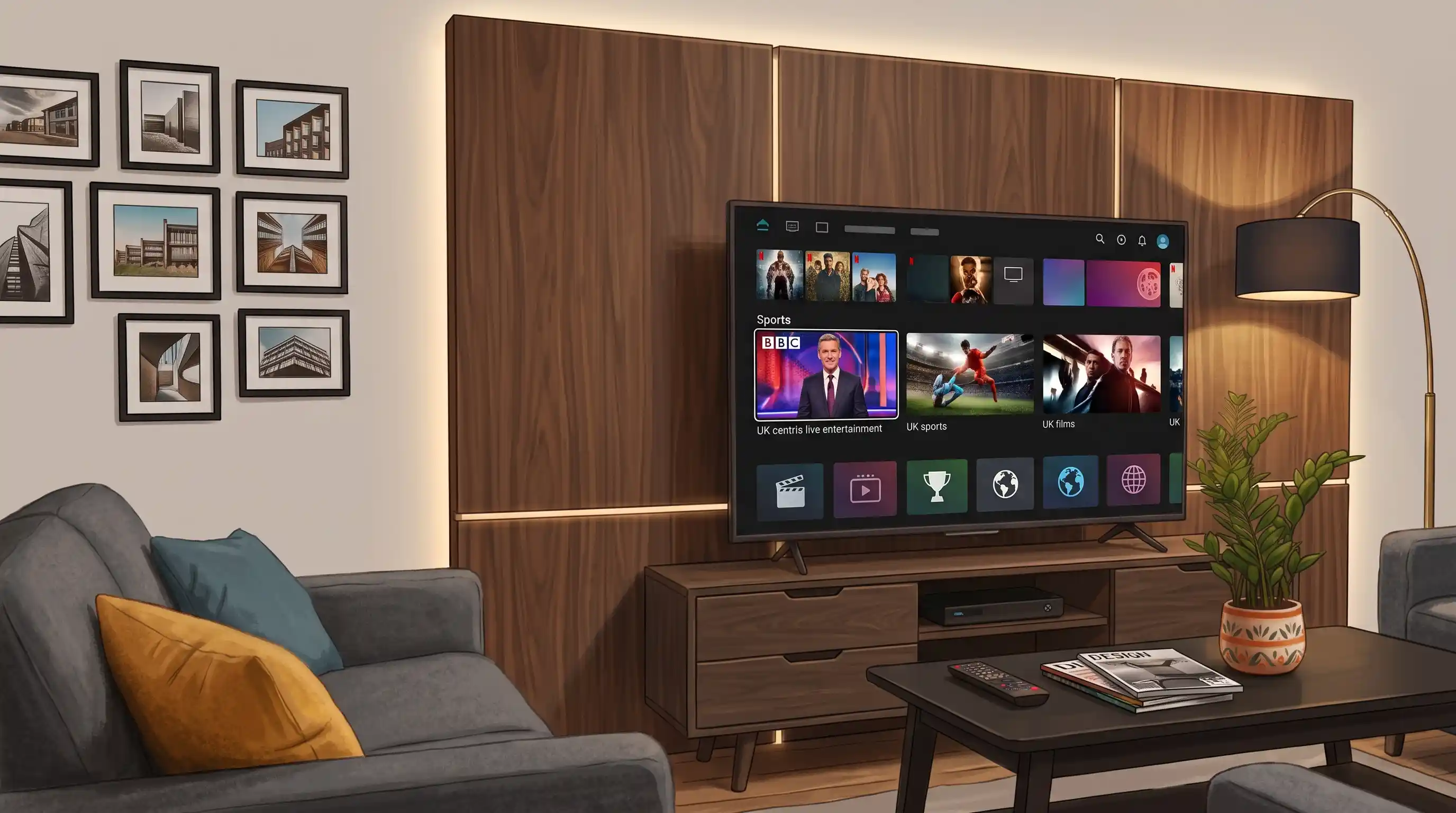
IPTV on Smart TV UK — Samsung, LG and Android TV setup guide
Smart TV (2016 or newer)
10 Mbps+ broadband
IPTV subscription credentials
Under 15 minutes
Find your Smart TV

Which Smart TV Do You Have?

The setup method and IPTV app depend on your TV’s operating system — not just the brand. Find yours below to jump straight to the right guide.

Samsung

Samsung Smart TV (Tizen OS)

Models from 2016 onwards running Tizen OS. Access via the Samsung App Store — no sideloading needed for most apps.

Best app: SS IPTV (free) or Smart IPTV (£4.99 once)
LG

LG Smart TV (webOS)

LG TVs running webOS 4.0+ (2019 models onwards) have the widest app support. Older webOS models still work but with fewer app options.

Best app: SS IPTV (free, no activation)
Android TV

Android TV / Google TV

Sony Bravia (most models), Philips, TCL, Hisense and others running Android TV or Google TV. Full access to Google Play Store — the easiest setup path of all Smart TV platforms.

Best app: IPTV Smarters Pro or TiviMate (Play Store)
Sony / Others

Sony Bravia & Other Brands

Most Sony Bravia TVs (2014+) run Android TV or Google TV, giving access to the full Play Store. Older Sony models may require an HDMI streaming stick as an alternative.

Best app: IPTV Smarters Pro (Play Store)
Step-by-step guides

How to Set Up IPTV on Your Smart TV

Select your TV brand below for the exact setup path. All guides use IPTV UK Spot Xtream Codes credentials.

Samsung Smart TV — IPTV Setup (Tizen OS)

Works on Samsung TVs from 2016 onwards. Uses SS IPTV (free) or Smart IPTV (one-off £4.99).

Open the Samsung App Store

Press the Home button on your Samsung remote. Navigate to the Apps section (bottom of the home screen), then select the Search icon in the top right corner.

Home Button›Apps›Search icon

Install Your IPTV Player

Search for and install one of these apps. SS IPTV is recommended — it’s free, requires no activation fee, and supports both Xtream Codes and M3U.

Free — Recommended

SS IPTV

Free to download, no activation payment. Supports Xtream Codes API and M3U. Available on Samsung App Store. Best for most UK users.

£4.99 one-off

Smart IPTV (SIPTV)

One-off activation payment required via siptv.app. Uses MAC-address M3U upload method. Good EPG and stability on older Samsung models.

If SS IPTV doesn’t appear in search results, check your TV region: Settings → General → System Manager → Language → set region to United Kingdom. Some content is region-locked in the Samsung App Store.

Enter Your IPTV UK Spot Credentials (SS IPTV)

Open SS IPTV. From the main screen, go to Settings → Playlist → Add Playlist. Choose Xtream Codes (recommended) and enter the server URL, username and password exactly as provided by IPTV UK Spot.

SS IPTV›Settings›Playlist›Add Playlist›Xtream Codes

Alternatively, if using Smart IPTV (SIPTV): note the MAC address shown on the app’s welcome screen. Go to siptv.app/mylist on your phone or PC, enter the MAC address and paste in your M3U URL from IPTV UK Spot. Then click Update and restart the app on your Samsung TV.

Channels Load — Optimise for Best Picture

Your channel library and EPG will load automatically. For the clearest picture on Samsung:

Disable Motion Smoothing

Samsung’s “Auto Motion Plus” makes live sport look like a soap opera. Turn it off: Settings → Picture → Expert Settings → Auto Motion Plus → Off.

Use Ethernet for 4K

For 4K streams, plug your Samsung TV directly into your router: Settings → General → Network → Network Status.

LG Smart TV — IPTV Setup (webOS)

Works on LG TVs running webOS 4.0+ (2019 models onwards). SS IPTV is free with no activation fee — the easiest route on LG.

Open the LG Content Store

Press the Home button on your LG Magic Remote. Navigate to the LG Content Store. Select the Search icon and search for SS IPTV.

Home Button›LG Content Store›Search›“SS IPTV”

LG webOS older than 4.0 (pre-2019 models) has a more limited content store. If SS IPTV is unavailable, try Smart IPTV as a fallback, or use a Firestick in the HDMI port for older LG sets.

Install SS IPTV — Free, No Activation Fee

SS IPTV on LG is completely free — unlike Samsung where some IPTV apps require a one-off payment. Download and install it from the LG Content Store, then open it and grant any requested permissions.

SS IPTV on LG supports both Xtream Codes API (recommended — gives full EPG and VOD) and M3U playlist URL. IPTV UK Spot provides Xtream Codes credentials with every subscription.

Add Your IPTV UK Spot Playlist

Inside SS IPTV, go to Settings → Add Playlist → Xtream Codes. Enter the server URL, username and password provided by IPTV UK Spot. Save and the app will load your channels and EPG automatically.

SS IPTV›Settings›Add Playlist›Xtream Codes›Enter credentials → Save

Optimise Picture Quality on LG

Turn off TruMotion (LG’s equivalent of Samsung’s motion smoothing — it causes unnatural movement on live sport).

Settings›Picture›TruMotion›Off

For 4K IPTV streams, a wired Ethernet connection is strongly recommended on LG. Go to Settings → Network → Wired Connection and connect directly to your router.

Android TV / Google TV — IPTV Setup

The easiest Smart TV platform for IPTV. Direct access to the Google Play Store — no sideloading, no activation fees, full app selection including TiviMate.

Open Google Play Store on Your Android TV

Press the Home button and navigate to the Google Play Store from your Android TV’s home screen. Search for your preferred IPTV player.

Home Button›Apps›Google Play Store›Search

Install IPTV Smarters Pro or TiviMate

Android TV gives you access to the same high-quality IPTV players available on Firestick — without any sideloading. Both are available directly from the Play Store.

Free — Recommended

IPTV Smarters Pro

Free on Google Play Store. Clean interface, Xtream Codes and M3U support, built-in EPG. Best for beginners — the fastest setup on Android TV.

Best UI

TiviMate

Free base version, Premium unlocks full features. The best EPG, buffer controls and multi-playlist support. Preferred by experienced IPTV users on Android TV.

Enter Your IPTV UK Spot Xtream Codes

Open your chosen IPTV player. In IPTV Smarters Pro, tap Add User → Xtream Codes API and enter your server URL, username and password. In TiviMate, tap Add Playlist → Xtream Codes and enter the same details.

Your IPTV UK Spot credentials are sent when you subscribe or request a trial. Channels and EPG load automatically once connected.

Android TV is the easiest IPTV platform of all Smart TV options — no region restrictions, no activation fees, full Xtream Codes support and the best app selection. If you’re buying a Smart TV and plan to use IPTV, Android TV or Google TV models are the most straightforward choice.

Optimise Settings for Best Performance

In TiviMate: go to Settings → Player → Buffer size and set to 10–15 seconds. Enable Hardware Decoder for smoother 4K playback. In IPTV Smarters Pro: use the ExoPlayer engine and toggle HW decoding if streams stutter.

For 4K IPTV on Android TV, use a wired Ethernet connection where possible. Navigate to Settings → Network & Internet → Ethernet on most Android TV devices.

Sony Bravia — IPTV Setup

Most Sony Bravia TVs from 2014 onwards run Android TV or Google TV — follow the Android TV guide above. This section covers the specific Sony nuances.

Check Which OS Your Sony Bravia Runs

Sony Bravia TVs from 2014 to 2021 run Android TV. Sony Bravia models from 2022 onwards run Google TV. Both give full access to the Google Play Store and use the same IPTV app setup process as the Android TV guide above.

Older Sony models (pre-2014) don’t run Android and may have limited or no IPTV app support. The most reliable solution for older Sony TVs is to connect an Amazon Firestick to the HDMI port and follow the Firestick setup guide instead.

Install IPTV Smarters Pro from Google Play

Press the Home button on your Sony remote, navigate to Apps and open the Google Play Store. Search for IPTV Smarters Pro and install it. This is available on all Sony Bravia Android TV and Google TV models.

Home›Apps›Google Play Store›Search “IPTV Smarters Pro”›Install

Add Your IPTV UK Spot Credentials

Open IPTV Smarters Pro and tap Add User. Choose Xtream Codes API and enter the server URL, username and password provided by IPTV UK Spot. Channels and EPG load automatically once your credentials are verified.

Sony Bravia Picture Tips for IPTV

Sony’s Motionflow setting (like Samsung’s Auto Motion Plus and LG’s TruMotion) can make live sport look unnatural. Disable it in Settings → Display & Sound → Picture → Motionflow → Off or Custom (Smoothness: 0, Clearness: 0).

Sony Bravia X-Reality Pro and TRILUMINOS Display processing generally works well with IPTV — leave those enabled for the best colour accuracy on HD and 4K streams.

Choosing your app

Best IPTV Apps for Smart TVs in the UK

Three apps dominate UK Smart TV IPTV setups. All work with IPTV UK Spot Xtream Codes credentials — the right choice depends on your TV platform and preference.

Feature SS IPTV Smart IPTV IPTV Smarters Pro
CostFree£4.99 one-offFree
Samsung (Tizen)✓✓✓
LG (webOS)✓✓Limited support
Android TV / Google TV✓✗✓
Xtream Codes API✓M3U only✓
EPG programme guide✓✓✓
VOD / on-demand✓✗✓
Catch-up / time-shift✓Limited✓
Best forSamsung & LGOlder Smart TVsAndroid TV
Troubleshooting

IPTV Buffering on Smart TV — How to Fix It

Smart TVs buffer for the same reasons as any other device. These fixes resolve the vast majority of IPTV buffering issues on Samsung, LG and Android TV.

1. Switch from Wi-Fi to Ethernet

Most Smart TV buffering is caused by an unstable Wi-Fi connection — not your broadband speed. An Ethernet cable plugged directly from your router to the TV eliminates this instantly. This is the single most effective fix for Smart TV IPTV buffering.

2. Move to the 5 GHz Wi-Fi Band

If Ethernet isn’t an option, connect your Smart TV to the 5 GHz network rather than 2.4 GHz. The 5 GHz band is faster and less congested. Check your TV’s Wi-Fi settings and look for the network labelled with “5G” or “_5GHz”.

3. Restart the TV and Router

Power off your Smart TV fully (not standby), unplug your router for 60 seconds, restart the router, then power the TV back on. This clears cached connection issues and is often all that’s needed to restore smooth streaming.

4. Clear the IPTV App Cache

A full app cache causes progressive slowdowns during playback. Clear it monthly.

Settings → Apps → [Your IPTV App] → Clear Cache

On Samsung: Settings → Support → Device Care → Manage Storage. On LG: Settings → General → System → Additional Settings → Application Manager.

5. Increase Buffer Size in the App

In SS IPTV and IPTV Smarters Pro, increasing the buffer pre-loads more stream data before playback and reduces interruptions. Look for Player Settings → Buffer Size and increase to Large or 10–15 seconds where available.

6. Evening Buffering? Likely ISP Throttling

If IPTV buffers consistently between 7–11 PM but is fine during the day, your UK ISP is throttling streaming traffic at peak hours. Change your router’s DNS to 1.1.1.1 (Cloudflare) in your router admin panel — this bypasses ISP DNS filtering and often improves IPTV performance during peak hours.

Ready to watch on your Smart TV?

Get IPTV UK Spot for Your Smart TV — From £9.99

Works on SS IPTV, IPTV Smarters Pro and TiviMate on all Smart TV brands. Order on our secure checkout — your credentials arrive the same day. Not sure yet? Try the service free first.

1 Month
£9.99/mo
  • 10,000+ live channels
  • HD & 4K + EPG
  • Live sports + movies
  • All Smart TV brands
Get 1 Month
3 Months
£24.99
£8.33/mo · Save 17%
  • 10,000+ live channels
  • HD & 4K + EPG
  • Live sports + movies
  • All Smart TV brands
Get 3 Months
6 Months
£39.99
£6.67/mo · Save 33%
  • 10,000+ live channels
  • HD & 4K + EPG
  • Live sports + movies
  • All Smart TV brands
Get 6 Months
⭐ Best Value 1 Year
£49.99/yr
£4.17/mo · Save 58%
  • 10,000+ live channels
  • HD & 4K + EPG
  • Live sports + movies
  • All Smart TV brands
Get 1 Year — Best Value
🏆 Best Deal Lifetime
£369
Pay once. Watch forever.
  • 10,000+ live channels
  • HD & 4K + EPG
  • Live sports + movies
  • Never pay again
Get Lifetime Access
3 Months
£39.99
£6.67/mo per screen
  • 2 simultaneous streams
  • 10,000+ live channels
  • HD & 4K + EPG
  • All Smart TV brands
Get 3 Months
6 Months
£79.99
£6.67/mo per screen · Save 33%
  • 2 simultaneous streams
  • 10,000+ live channels
  • HD & 4K + EPG
  • All Smart TV brands
Get 6 Months
⭐ Best Value 1 Year
£89.99/yr
£3.75/mo per screen · Save 58%
  • 2 simultaneous streams
  • 10,000+ live channels
  • HD & 4K + EPG
  • All Smart TV brands
Get 1 Year — Best Value
3 Months
£49.99
£5.55/mo per screen
  • 3 simultaneous streams
  • 10,000+ live channels
  • HD & 4K + EPG
  • All Smart TV brands
Get 3 Months
6 Months
£99.99
£5.56/mo per screen · Save 33%
  • 3 simultaneous streams
  • 10,000+ live channels
  • HD & 4K + EPG
  • All Smart TV brands
Get 6 Months
⭐ Best Value 1 Year
£119.99/yr
£3.33/mo per screen · Save 58%
  • 3 simultaneous streams
  • 10,000+ live channels
  • HD & 4K + EPG
  • All Smart TV brands
Get 1 Year — Best Value
Not ready? Test the service free first — no payment needed. Get Free Trial
Smart TV IPTV questions

IPTV on Smart TV UK — FAQs

Yes — most modern Smart TVs can run IPTV directly through their built-in app stores without any additional hardware. Samsung Tizen TVs use SS IPTV or Smart IPTV from the Samsung App Store. LG webOS TVs use SS IPTV from the LG Content Store. Android TV and Google TV sets (Sony Bravia, Philips, TCL, Hisense) can install IPTV Smarters Pro or TiviMate directly from the Google Play Store.

A Firestick in the HDMI port is still the best overall option for any TV — it gives access to TiviMate, the superior IPTV player — but it is not required for modern Smart TVs.

SS IPTV is the best free option for Samsung Smart TVs in the UK — it’s available from the Samsung App Store, supports Xtream Codes API and M3U, and includes EPG and VOD without any activation fee. Smart IPTV (SIPTV) is an alternative that works on older Samsung models but requires a one-off £4.99 payment via the siptv.app website.

Both apps are fully compatible with IPTV UK Spot subscription credentials.

It depends on the model year and operating system. Samsung Tizen TVs from 2016 onwards and LG webOS TVs from 2019 onwards have good IPTV app support. Android TV models from 2014 onwards have full Play Store access. Older Smart TVs — especially pre-2016 Samsung or pre-2016 LG — have very limited or no compatible IPTV apps available in their stores.

For older sets, the most reliable solution is to connect an Amazon Firestick to any available HDMI port.

See the Firestick setup guide →

Open your IPTV player on your Smart TV (SS IPTV, IPTV Smarters Pro, or similar). Look for an option to Add Playlist or Add User — then select Xtream Codes API as the connection type.

Enter the three pieces of information provided by IPTV UK Spot: your server URL, username, and password. Paste these exactly as received — no extra spaces. Your channels and EPG load automatically once the credentials are verified.

SS IPTV is region-locked in the Samsung App Store. If it doesn’t appear in search results, your TV’s region may not be set to United Kingdom. To fix it:

Settings → General → System Manager → Language → set Country or Region to United Kingdom. Restart the Samsung App Store and search again. If SS IPTV still doesn’t appear, try searching for “Smart IPTV” as an alternative.

A minimum of 10 Mbps stable is needed for HD IPTV on Smart TV. For 4K streams, 25 Mbps or more is recommended. Smart TVs connected via Wi-Fi often experience lower effective speeds than a direct Ethernet connection — for reliable 4K IPTV, plug your Smart TV into your router with an Ethernet cable.

If you’re watching on multiple devices simultaneously, ensure your broadband plan supports the combined bandwidth — two HD streams need approximately 20 Mbps stable.

Yes — if you have a multi-connection plan. IPTV UK Spot offers 1, 2 or 3 simultaneous connections. A 1-connection plan allows one stream at a time across all your devices. A 2-connection plan allows two streams simultaneously — for example, your Smart TV and a phone at the same time. A 3-connection plan allows three simultaneous streams.

Select the right tab in the plans section above to see the multi-connection pricing.

A Firestick (especially the 4K Max) gives the best overall IPTV experience on any TV — it runs TiviMate, has dedicated hardware for IPTV playback and is easier to troubleshoot. If you want zero extra hardware and a clean setup, your Smart TV’s native apps work well on 2019+ Samsung and LG sets, and excellently on Android TV.

The honest recommendation: if you have an older Smart TV or want the best EPG and buffer controls, add a Firestick. If you have a 2020+ Samsung, LG or Android TV and want a simple setup, the built-in app route works perfectly well.

Read the Firestick setup guide →
Ready to watch on your Smart TV?

Get IPTV UK Spot on Your
Smart TV — Free Trial First

Test the full service free on your Smart TV before subscribing — no payment needed. Ready to commit? Choose your plan above and your credentials arrive the same day. Works on Samsung, LG, Android TV and Sony. Plans from £9.99.

Samsung · LG · Android TV · Sony · Plans from £9.99 · HD & 4K · EPG included