How to Install IPTV in the UK Complete Setup Guide for Firestick, Smart TV, Android, iPhone & More
Installing IPTV in the UK takes under 15 minutes on any device. This guide covers the complete IPTV setup process — what you need, how to enter your credentials, and which app to use on each device — with links to detailed step-by-step guides for every platform.
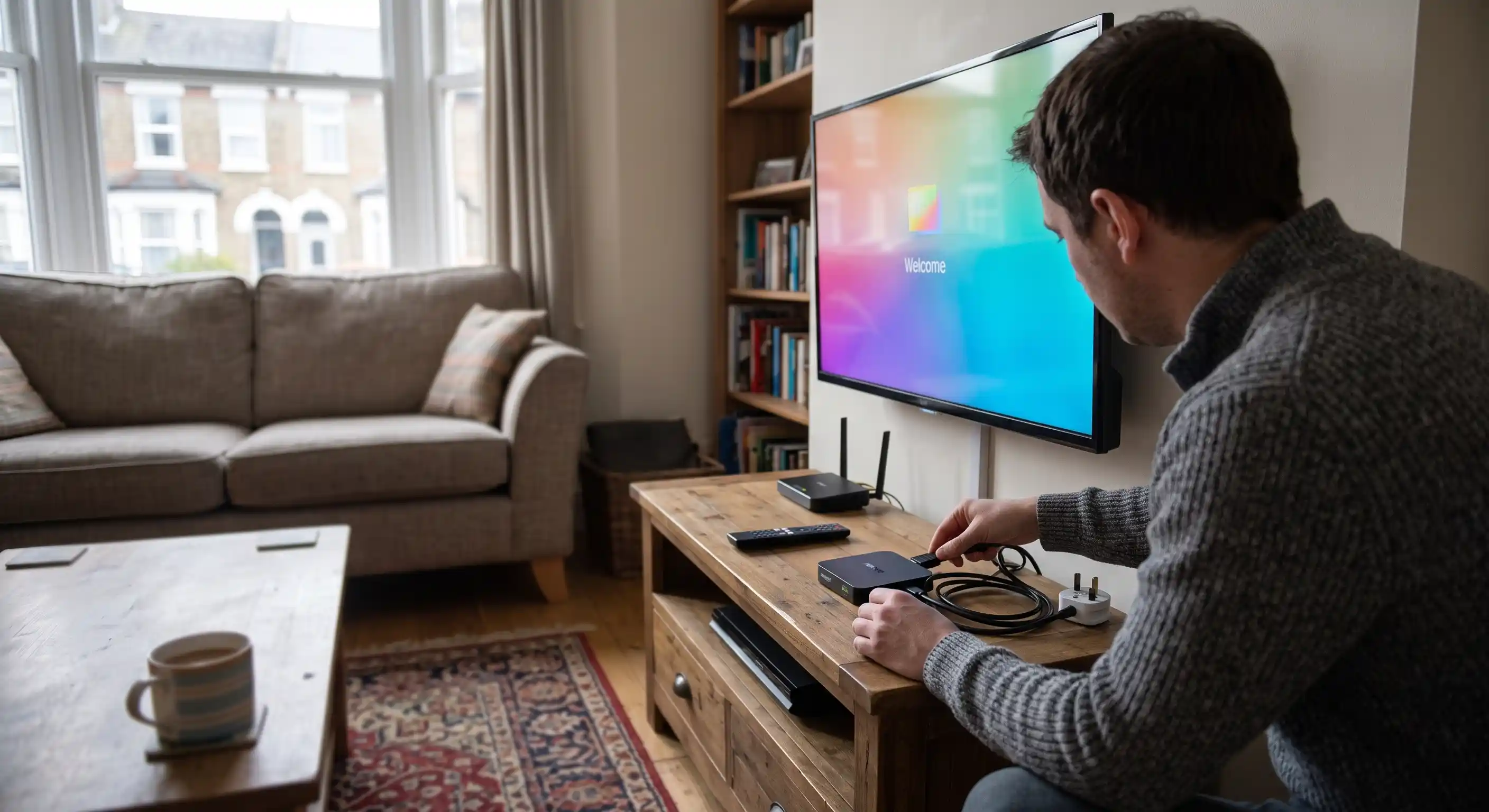
What You Need to Install IPTV in the UK
Every IPTV installation — regardless of device — needs the same three things. Get these ready before following any device-specific guide below.
A Compatible Device
IPTV works on Amazon Firestick, Samsung and LG Smart TVs (2016+), Android TV, iPhones, Android phones, Windows PCs, MAG boxes and Apple TV. If you have a screen connected to the internet, there’s almost certainly a supported IPTV app for it.
IPTV Subscription Credentials
Once you subscribe — or request a free trial — IPTV UK Spot sends your credentials via WhatsApp. You’ll receive either Xtream Codes (server URL, username, password — the recommended method) or an M3U playlist URL. Have these ready before opening any app.
A Stable Broadband Connection
HD IPTV needs at least 10 Mbps stable. 4K streams need 25 Mbps+. A wired Ethernet connection always outperforms Wi-Fi for IPTV — if your device has a LAN port, use it. If you’re on Wi-Fi, connect to the 5 GHz band rather than 2.4 GHz.
Xtream Codes vs M3U — Which Should You Use?
IPTV UK Spot provides both methods with every subscription. Xtream Codes is recommended because it gives full EPG, catch-up and VOD access. M3U is a fallback for older apps that don’t support Xtream Codes.
The most common IPTV installation failure is a space accidentally pasted before or after the server URL. If your credentials don’t work, check for invisible trailing spaces first.
Universal IPTV Setup — 4 Steps That Work on Any Device
The specific menu names differ by app and device, but the process is the same everywhere. Memorise these steps and any installation guide becomes simple.
Download IPTV Smarters Pro, TiviMate, GSE Smart IPTV or SS IPTV — depending on your device. All are free or low-cost.
Look for Add User, Add Playlist or Add Account in the app’s menu or settings.
Choose Xtream Codes (not M3U) and enter your server URL, username and password from IPTV UK Spot.
Wait 20–60 seconds while your full channel library imports. Once it’s done, you’re live.
IPTV Setup Guide by Device
Select your device below. Each card gives you an overview of the setup process and links to the full step-by-step guide for that platform.
Android Phone & Tablet
The fastest IPTV setup of any device. IPTV Smarters Pro installs directly from the Google Play Store in seconds — no developer options, no sideloading needed.
- Install IPTV Smarters Pro from Google Play
- Tap Add User → Xtream Codes API
- Enter server URL, username, password
- Works on all Android 5.0+ phones and tablets
Also try GSE Smart IPTV or TiviMate on Android for additional EPG and multi-playlist options.
iPhone & iPad
Full IPTV support on iPhone and iPad. IPTV Smarters Pro and GSE Smart IPTV are both available on the Apple App Store — no jailbreak or sideloading required.
- Install IPTV Smarters Pro from App Store
- Or install GSE Smart IPTV (strong EPG)
- Add User → Xtream Codes → Enter credentials
- iOS 12+ required
For the best EPG on iPhone, GSE Smart IPTV handles multi-playlist management and catch-up particularly well on iOS.
Windows PC & Laptop
Watch IPTV on Windows using IPTV Smarters Pro (Microsoft Store) or VLC with an M3U playlist — or any browser-based IPTV player. No subscription to third-party software needed.
- IPTV Smarters Pro — Microsoft Store
- VLC Media Player — open M3U URL directly
- Kodi with PVR IPTV Simple Client add-on
- Windows 10 / 11 recommended
MAG Box
MAG boxes use a portal URL instead of Xtream Codes. IPTV UK Spot provides MAG portal credentials on request — setup requires entering the portal URL in the MAG system settings.
- Compatible with MAG 254, 256, 322, 324 and newer
- Uses portal URL method (not Xtream Codes)
- Enter portal URL in System Settings → Servers
- Contact us via WhatsApp for MAG credentials
Not sure which app to use on your device? See the complete IPTV player comparison →
Best IPTV Apps for UK Installation
All of these apps work with IPTV UK Spot Xtream Codes credentials. The right choice depends on your device and how much control you want over settings.
The most widely installed IPTV app in the UK. Clean multi-tab interface with Live TV, Movies and Series. Supports Xtream Codes and M3U. Available on every major platform.
The preferred app for experienced IPTV users. Best EPG grid, buffer controls and multi-playlist management. Free base version; Premium unlocks catch-up and DVR.
Excellent across iOS and Android — the best option for iPhone and iPad users. Strong EPG, parental controls and multi-playlist support. Also available on Firestick.
The go-to app for Samsung and LG Smart TVs — available directly from the Samsung App Store and LG Content Store with no activation fee. Supports Xtream Codes and M3U.
Full comparison including Downloader codes, pros/cons and per-device recommendations: IPTV Player UK — full guide →
IPTV Installation Problems — Quick Fixes
The vast majority of IPTV setup issues fall into one of these categories. Work through them in order — most people find a fix within the first two.
Login Failed / Authentication Error
99% of login failures are caused by a copy-paste error. Check for a space before your server URL, confirm you selected “Xtream Codes API” (not M3U), and verify the username and password are exactly as provided — they’re case-sensitive.
Channels Are Loading But Taking a Long Time
Normal on first load — 10,000+ channels and EPG data takes 30–90 seconds to import. If it’s taking several minutes, check your internet connection. Restart the app and try again on a faster connection.
Channels Loaded But Video Won’t Play
Try switching the decoder in your app settings — toggle between hardware (HW) and software (SW) decoding. In TiviMate: Settings → Player → Decoder. In IPTV Smarters: Settings → Player → HW decoder toggle.
Video Buffers or Freezes
Switch from Wi-Fi to Ethernet if possible. If not, move to the 5 GHz Wi-Fi band. Increase the buffer size in your app’s Player settings (10–15 seconds). Restart your router and the device.
“Max Connections Reached” Error
Your subscription only allows a set number of simultaneous streams. Close the IPTV app on all other devices, then reopen on the device you want to watch on. If you regularly need more streams, upgrade your connection tier.
Can’t Find the App in the App Store
For Samsung: set your TV region to United Kingdom (Settings → General → System Manager → Language). For Firestick: some apps require sideloading via the Downloader app. For LG: check your webOS version is 4.0+.
Device-Specific IPTV Setup Guides
Each guide covers the exact process for that platform — including which app to install, where to find it, and the specific menu paths for entering your credentials.
How to Install IPTV UK — FAQs
The IPTV installation process is the same on every device: (1) install a compatible IPTV player app — such as IPTV Smarters Pro, TiviMate or SS IPTV, depending on your device; (2) open the app and tap Add User or Add Playlist; (3) select Xtream Codes API and enter the server URL, username and password provided by IPTV UK Spot; (4) wait for your channels and EPG to load. The whole process takes under 15 minutes on any device.
Compare IPTV players →Android phones and tablets are the simplest — IPTV Smarters Pro installs directly from the Google Play Store in under two minutes, no developer options or sideloading required. Android TV and Google TV devices (Sony Bravia, TCL, Hisense, Philips) are a close second. Firestick requires enabling Developer Options and sideloading TiviMate, but still takes under 10 minutes. Smart TVs are straightforward if they’re recent models (2019+ Samsung or LG, or any Android TV).
Both are methods for connecting your IPTV player to a provider’s servers. Xtream Codes uses three credentials (server URL, username and password) and gives you access to live TV, VOD, catch-up and EPG as separate structured categories. M3U is a single URL that loads a flat list of channels. Xtream Codes is the superior method — it supports full EPG and VOD, loads faster, and is more stable. IPTV UK Spot provides Xtream Codes credentials with every subscription. Use M3U only if your app doesn’t support Xtream Codes.
Yes — you can install IPTV on as many devices as you like using the same credentials, but you can only stream simultaneously on the number of devices your plan allows. A 1-connection plan means one active stream at a time across all devices. A 2-connection plan allows two simultaneous streams. If you regularly watch on multiple devices at the same time, choose a 2 or 3 connection plan when you subscribe.
No — a VPN is not required to install or use IPTV. The apps install through official stores or the Downloader app, and credentials connect directly to the provider’s servers. A VPN can help in two specific situations: if your ISP throttles streaming traffic in the evenings (causing buffering between 7–11 PM), a VPN encrypts your connection and bypasses the throttling. For most UK users on standard broadband with no throttling, a VPN has no effect on IPTV performance and can sometimes cause additional latency.
A minimum of 10 Mbps stable is sufficient for HD IPTV on a single device. 4K streams require 25 Mbps or more per stream. If you’re running two or three simultaneous connections, multiply accordingly. Stability matters more than raw speed — a consistent 20 Mbps connection performs better than a 60 Mbps connection with Wi-Fi dropouts. Use Ethernet where possible; if you’re on Wi-Fi, connect to the 5 GHz band.
Subscribe to or request a free trial from IPTV UK Spot via WhatsApp. Once your access is activated, we send your Xtream Codes credentials — server URL, username and password — directly via WhatsApp. The credentials arrive the same day. You can then enter them into any compatible IPTV player on any supported device.
Request a free trial →Both work well, but for different users. A Firestick gives the best overall IPTV experience — it runs TiviMate (the best IPTV player UI), is easy to troubleshoot, and works on any HDMI TV regardless of age. A Smart TV’s built-in apps are a good choice if you have a 2019+ Samsung or LG, or any Android TV device, and want zero extra hardware. For older Smart TVs, a Firestick in the HDMI port is more reliable. If you’re starting fresh and want the best experience, invest in a Firestick 4K Max alongside your IPTV subscription.
Full Firestick setup guide →
Get Your IPTV Credentials
and Start Watching Today
Request a free trial via WhatsApp — no payment needed. We’ll send your Xtream Codes credentials and help with setup on your device if needed. Works on Firestick, Smart TV, Android, iPhone and more. Plans from £9.99. Same-day activation.
Firestick · Smart TV · Android · iPhone · Windows · Plans from £9.99 · Same-day activation